Reference / Chapter 14
App Reference
Every control in the ProPatch app, by area: the header, the browser on the left, and the workspace on the right. Each screenshot number matches its table row. For how the areas fit together, see How ProPatch Works.
Every screenshot shows the Demo Device with the Demo Session open.
Header


| # | Control | What it does | Key |
|---|---|---|---|
| 1 | PRO PATCH and model number | Opens App Info: app version, build, release channel, and unit serial number. COPY copies them for support. | |
| 2 | Session selector | Switch and manage Sessions. See Sessions. | |
| 3 | + NEW CHAIN | Creates a Chain; Shift+click puts it in place of the selected card. Reads + NEW DEVICE in DEVICES. | Shift+N |
| 4 | SHORTCUTS | Keyboard Shortcuts dialog, including zoom. See Shortcuts. | K |
| 5 | MIDI | MIDI Learn on or off. With no MIDI port, it's crossed out and opens System Configuration › MIDI. See MIDI Control. | M |
| 6 | MUTE ALL | Turns off every active Chain and shows ALL MUTE ACTIVE. UNMUTE turns the same Chains back on. | |
| 7 | Gear | Opens System Configuration. Reads Update when an update is ready. |
Check monitor level and downstream gain before you select UNMUTE.
When the unit stops responding, a Disconnected banner appears (never on the Demo Device); changes take effect when it reconnects. See Troubleshooting and Diagnostics.
System Configuration
| Tab | What it holds |
|---|---|
| PREFERENCES | Offline Warning Popup: warn when the unit stops responding. |
| MIDI | MIDI port and MIDI ASSIGNMENTS (Shift+M). See MIDI Control. |
| DEVICES | Device CSV IMPORT and EXPORT. See Sessions. |
| BACKUP | SAVE BACKUP and RESTORE BACKUP. See Sessions. |
Browser
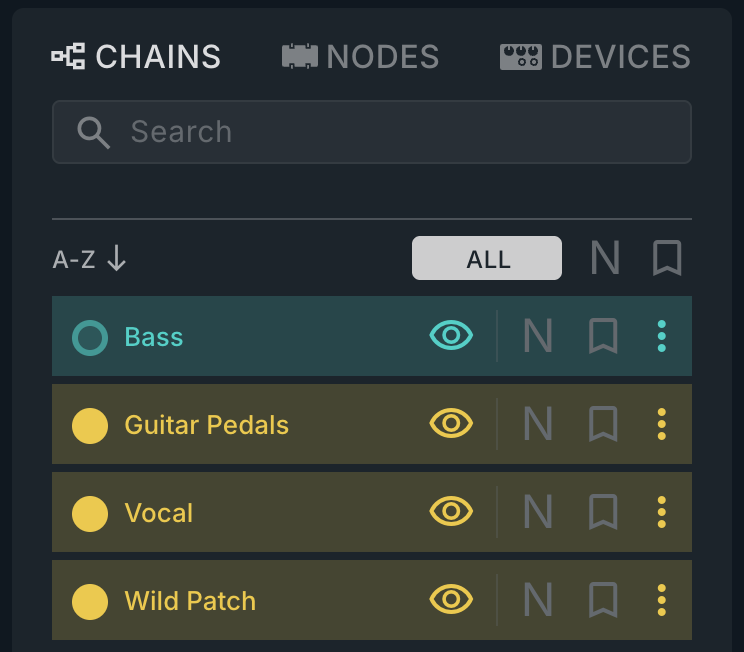
| # | Control | What it does | Key |
|---|---|---|---|
| 8 | CHAINS | Chains in this Session. Click one to select or show it. See Chains. | C |
| 9 | NODES | Nodes under SOURCES, PROCESSORS, DESTINATIONS, with tag filters. | N |
| 10 | DEVICES | Your Devices; select one to edit it. See Connecting Devices. | G |
| 11 | Search | Filters the list as you type. Escape leaves it. | / |
| 12 | Sort and filters | A-Z flips the order. ALL cycles ACTIVE / INACTIVE. N: Normals only. Bookmark: favorites only. | |
| 13 | Chain row | Activate, name, eye (show or hide the card), N, bookmark, and ⋮. See Chain menu reference. |
Workspace
Each Chain is a card. Click a card to select it, or press Tab / Shift+Tab. Double-click empty space to create a Chain.
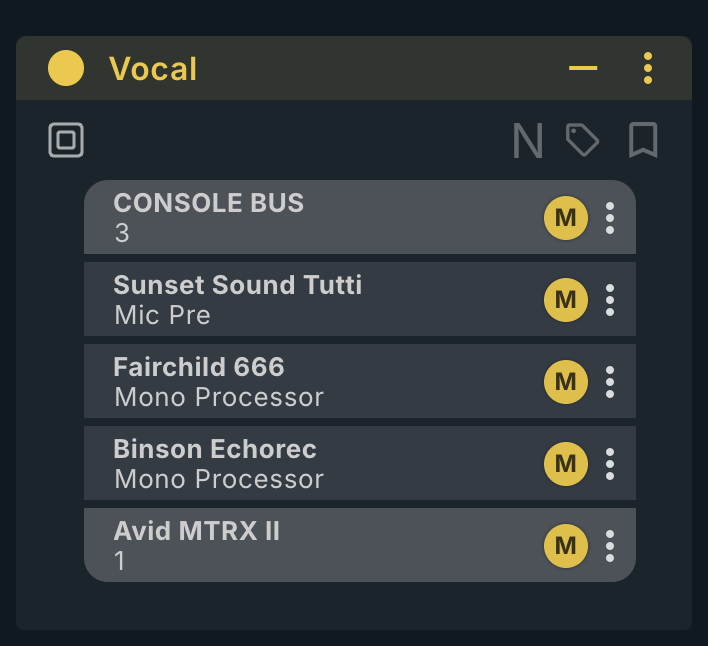
| # | Control | What it does | Key |
|---|---|---|---|
| 14 | Activate | Turns the Chain on or off. Filled circle: active. Outline: off. | A |
| 15 | Chain name | Double-click to rename. A lock icon follows it while locked. | |
| 16 | — Hide | Removes the card without deleting or deactivating the Chain. | H |
| 17 | ⋮ Chain menu | Lock, bypass, split, duplicate, delete, MIDI, color. See Chain menu reference. | |
| 18 | Target | Chains opened from the browser replace this card. | T |
| 19 | N, tags, bookmark | Normal, tags, favorite. See Normals. | |
| 20 | Node | Drag to reorder; order is signal path. | |
| 21 | M or L / R | Switches a mono Node or one stereo side. | |
| 22 | ⋮ Node menu | Whichever apply: Mult, AB, Dual Mono, Bridge, Unbridge, Ungroup, MIDI, Go to device..., Delete. |