Chains
A Chain is one signal path you want ProPatch to make:
Set up its Nodes first (Connecting Devices); their Port IDs tell ProPatch which relays to switch.
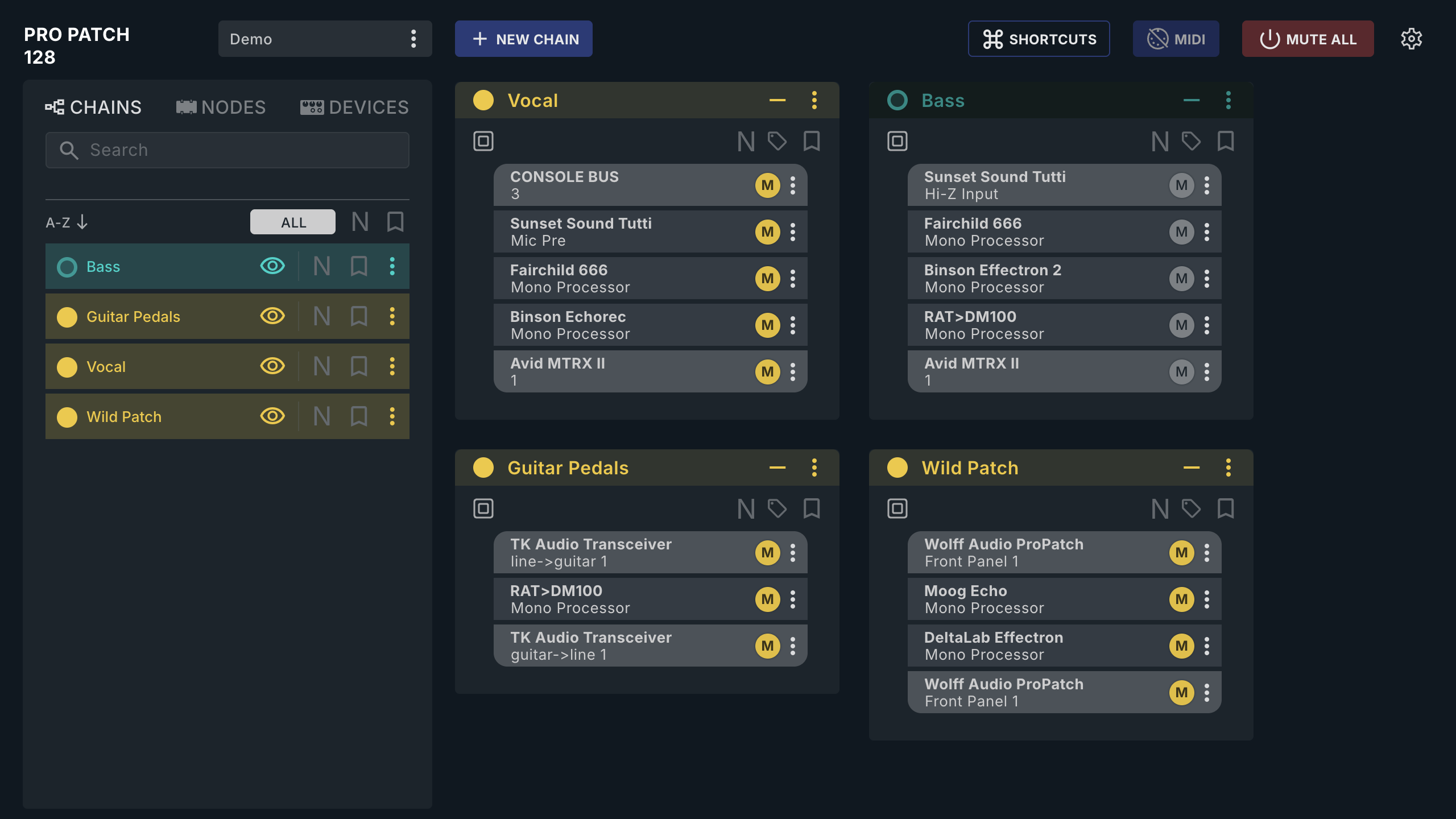
Create a Chain
- Select + NEW CHAIN (Shift+N), or double-click empty workspace. The Chain appears as
Untitled(Untitled 1, …) with its name ready to edit. - Type a name and press Enter.
- Open NODES and choose SOURCES, PROCESSORS, or DESTINATIONS.
- Drag Nodes into the slots (
Drag a Source here, …) in signal order, or double-click a Node to add it to the selected Chain.
Once the Chain has a Source and a Destination, it activates automatically.
Double-click a Chain's name, on the card or in CHAINS, to rename it. Shift+click + NEW CHAIN to put the new Chain in place of the selected card; the replaced Chain is hidden, not deleted.
Activate a Chain
A new Chain activates on its own the first time it has a Source and a Destination. After that, click the circle before the Chain's name, or press A, to turn it off or on. Filled means active: the relays for the path are closed.
If the Chain can't activate, CHAIN INVALID says why:
| Message | Fix |
|---|---|
Chain has invalid/incomplete nodes. |
Finish its Port IDs or replace it. |
Chain has no valid signal paths. A chain must have a source and destination. |
Add the missing Source or Destination. |
Chain has active nodes with overlapping ports. |
Two Nodes share a Port ID. Replace one. |
If a Port ID is already active in another Chain, CONFLICTS DETECTED opens when you activate, or when you add a Node to an active Chain. See Port ID Conflicts.
Each Node has its own switch: M (mono) or L / R (stereo). Shift+click L or R to switch both sides.
Add, replace, copy, and remove Nodes
| To | Do this |
|---|---|
| Insert a Node | Drag it between two Nodes. |
| Reorder | Drag within the Chain. Order is signal order. |
| Add to the selected Chain | Double-click it in NODES; for one stereo side, see Connecting Devices. Nothing happens if the Chain already uses that Node's Port IDs or has a Mult lane; drag the Node in instead. |
| Replace a Node | Drag the new Node onto it. The new Node arrives switched off. |
| Move to another Chain | Drag the Node into the other Chain. |
| Copy to another Chain | Option/Alt+drag it into the other Chain. |
| Copy into a new Chain | Option/Alt+click it, in a Chain or in NODES. |
| Remove from the Chain | Node ⋮ › Delete, or Command+click it (macOS). The Node stays in its Device. |
| Fix its Port IDs | Node ⋮ › Go to device... |
Command+Z undoes, Command+Shift+Z redoes. The other Node ⋮ items are in Advanced Routing.
Selected and Target Chains
Two states decide where your actions land:
- The selected Chain has an outlined card. Click a card or press Tab / Shift+Tab to select. Keys (A, B, H, L, T) and double-clicked Nodes act on it.
- A Target card is replaced by the next Chain you open from the browser. Press T, or click the square at the card's top left, to toggle Target on the selected Chain.
Bypass Processors
Switch off one Processor's M, L, or R to take it out. For all Processors:
| Action | What happens | To undo |
|---|---|---|
| B, or ⋮ › Bypass Processors | Saves their states and takes them out. The card shows Processors Bypassed / (b or click to restore). |
B again, click the card, or CHAINS row ⋮ › Restore Processors. |
| Shift+B | Switches every Processor off; nothing is saved. Ignored while bypassed. | Switch them back on one by one, or Command+Z. |
Source and Destination are never bypassed. On a locked Chain, B shows Chain is locked.
Lock a Chain
Press L or choose ⋮ › Lock to protect the Chain's structure. A lock icon follows the name; click it or choose Unlock to unlock. While locked, Bypass Processors, Split, and Delete are unavailable; you can still activate, hide, duplicate, and assign MIDI.
A lock doesn't stop a conflict: DEACTIVATE in CONFLICTS DETECTED turns locked Chains off too (Port ID Conflicts). A lock is not a Normal.
Split a Chain
⋮ › Split gives the Chain separate left and right lanes: the existing Nodes stay on the left and an empty right lane appears, so each side can carry its own mono Nodes. Unsplit joins them again; a Chain built from a stereo Node already shows Unsplit. Neither works on a locked Chain, and Unsplit is unavailable while the Chain has a Mono to Stereo Node.
To split one stereo Node instead, use Node ⋮ › Dual Mono (Advanced Routing).
Hide and show Chains
Click — on the card, or press H, to hide it; the Chain stays active. Click the eye in its CHAINS row to show or hide it, or Shift+click the eye to show it in place of the selected card. If Chains seem to replace one another, check for a Target card.
Duplicate a Chain
⋮ › Duplicate makes <name> copy, with the same Nodes and Port IDs, so the two conflict if both are active.
Delete a Chain
⋮ › Delete, or Command+click the Chain's header (macOS). Neither asks to confirm, and neither works on a locked Chain; Command+Z brings the Chain back. Devices and Nodes are untouched. Save the Session to keep the change (Sessions).
Chain menu reference
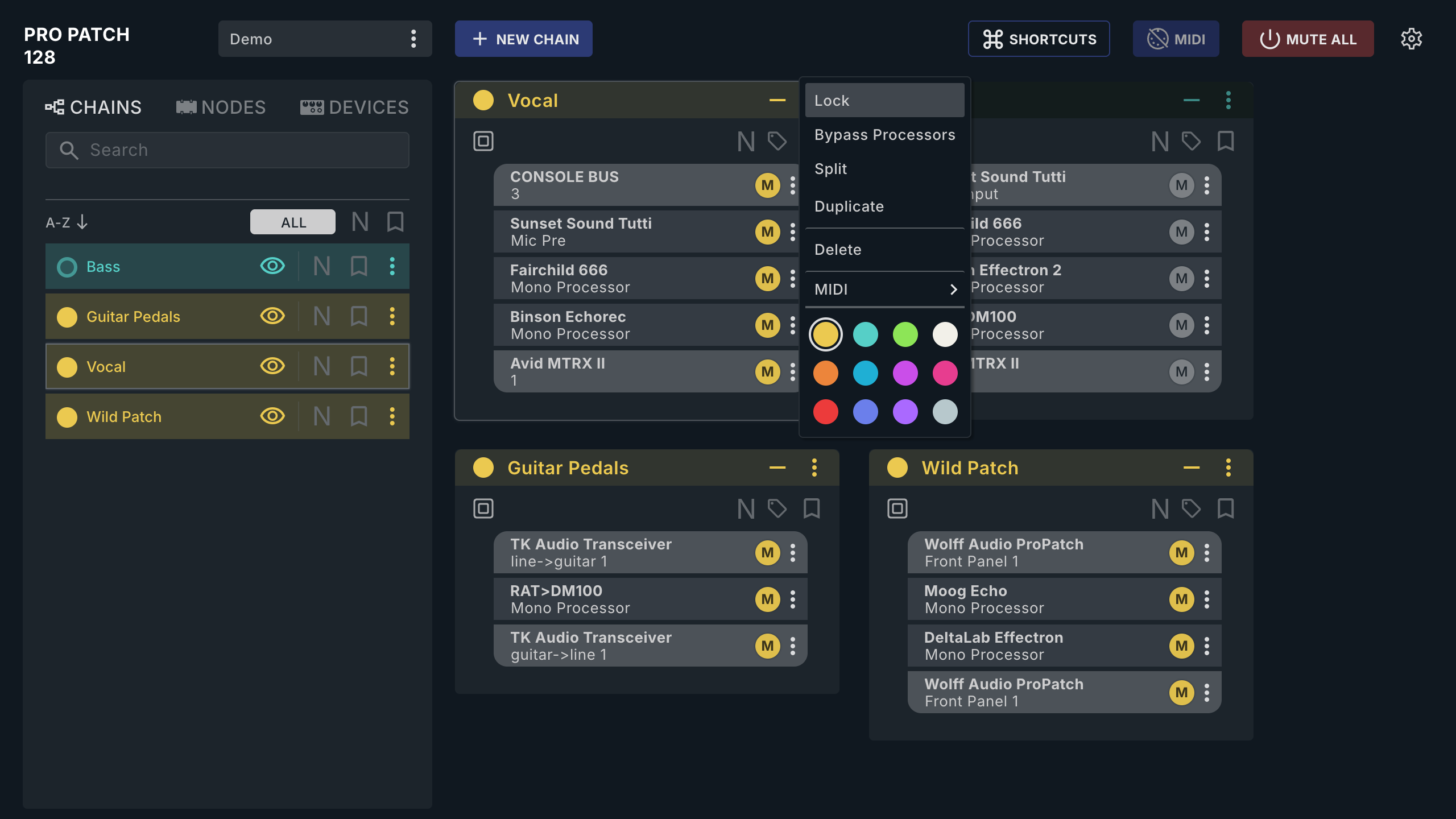
| Item | Card ⋮ | CHAINS row ⋮ |
|---|---|---|
| Lock / Unlock | Yes | Yes |
| Bypass Processors | Yes; label never changes | Reads Restore Processors while bypassed |
| Split / Unsplit | Yes | No |
| Duplicate | Yes | Yes |
| Delete | Yes | Yes |
| MIDI | Yes; see MIDI Control | Yes |
| Color swatches | Yes | Yes |
Useful Chain patterns
- Recording: tie line → mic pre → compressor → converter input.
- Hardware insert: converter output → analog Processors → converter input.
- One Source to several Destinations: a Mult.
- Instant Device comparison: an AB Group.