Sessions, Files, and Backups
A Session is a saved workspace. Save keeps it inside the ProPatch app, Export... writes it to a file, and a backup captures every Session at once.
What a Session saves
- Devices and Nodes. Each Session has its own; editing a Device in one Session doesn't change it in another.
- Port assignments.
- Chains, their layout, and which are active.
- MIDI assignments for Chains, Nodes, and AB Groups (MIDI Control).
Loading a Session switches the unit's routing to that Session's saved state.
Session files, Device files, and backups
| File | Made with | Contains | Use it for |
|---|---|---|---|
Session file (.propatchs) |
Session menu › Export... | One Session, complete | Archiving with a DAW project, moving a setup, support |
Device file (.csv) |
System Configuration › DEVICES › EXPORT | The current Session's Devices and Nodes | Editing a large Device library in a spreadsheet |
Backup (.propatchb) |
System Configuration › BACKUP › SAVE BACKUP | Every Session | Disaster recovery, moving the whole workspace |
Sessions import through the Session menu; backups restore through System Configuration. The selected MIDI port stays on the computer and is in neither file.
The Session menu
Click the Session name at the top left.
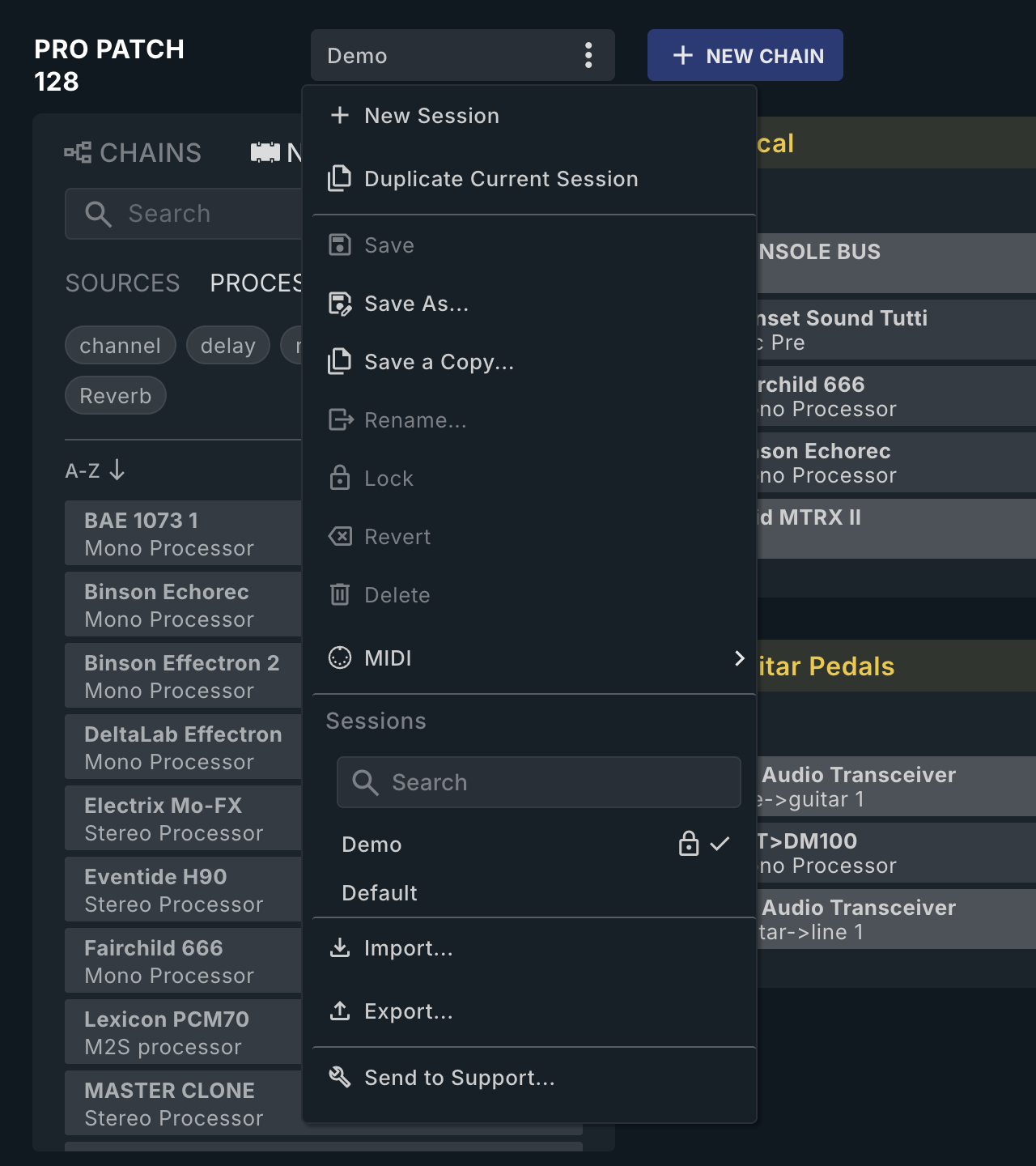
| Command | What it does | When to use it |
|---|---|---|
| New Session | Opens NEW SESSION: Session Name, then New blank session or New from existing session (choose a Template Session; Import chains from session copies its Chains too). | New project or studio mode |
| Duplicate Current Session | The same dialog, with the current Session as the template. | Branching a known-good setup |
| Save | Writes changes to the current Session. Enabled only when there are unsaved changes and the Session is writable. | Everyday saving |
| Save As... | Saves under a new name and switches to it. | Carrying on in a new copy |
| Save a Copy... | Saves under a new name; you stay in the current Session. | Snapshot before a risky change |
| Rename... | Renames the current Session. | — |
| Lock / Unlock | A locked Session can't be saved, renamed, or deleted. You can still change routing but keep changes only as a new Session. | Protecting a reference Session |
| Revert | Returns to the last saved state. Enabled only with unsaved changes; asks first, offering SAVE A COPY & REVERT. | Abandoning experiments |
| Delete | Deletes the current Session after DELETE? (NO / YES). | Clearing out old Sessions (export first) |
| MIDI | Assigns a MIDI note that loads this Session. | Recalling Sessions from a controller (MIDI Control) |
| Sessions list | Searchable. Lock icon = locked; ✓ = current. Click a name to load it. | Switching Sessions |
| Import... | Loads a .propatchs file under the name you give it, and switches to it. Asks before overwriting a Session of the same name. |
Bringing back an exported Session |
| Export... | Opens a Save dialog for propatch-session-<name>.propatchs. |
Archiving a Session with a project |
| Send to Support... | Sends environment info, and optionally the Session, to Wolff Audio. | Reporting a problem |
Unsaved changes
There's no unsaved-changes marker. If Save is enabled, you have unsaved changes.
Loading, creating, or importing a Session with unsaved changes opens SAVE CHANGES?: DON'T SAVE discards them, CANCEL goes back, and the third button saves first (for example SAVE & LOAD, or SAVE AS & LOAD in a read-only Session).
The Demo Session
Demo is read-only and can't be unlocked, renamed, deleted, or overwritten by an import. To keep changes, use Save As....
Export a Session for a project
Save keeps a Session only inside the ProPatch app on this computer. For each important project:
- Save the Session.
- Choose Export... and save the file in the project folder.
- Include that file in your normal project backups.
If you see "Failed to export session", assume no file was written. Keep the Session open and contact Wolff Audio support.
Send a Session to support
- Choose Send to Support.... The dialog lists the environment info it will send (app version, release channel, build, browser, OS).
- Enter Name and Email (both required).
- In Message (optional), give the ProPatch model, what you did, and which Chain failed.
- Leave Include session data ticked, and click SEND.
It sends over the internet, not through your email app. If it fails, export the Session and email the file to support.
Back up and restore everything
Open System Configuration (the gear) and choose BACKUP.
- SAVE BACKUP saves
propatch-backup.propatchb: every Session, plus the current Devices, Chains, and active Session. - RESTORE BACKUP asks DELETE EVERYTHING?. Choose YES, then pick the file. The backup replaces the whole workspace.
Restoring a backup is also how you reset everything. Save a current backup first.
Release channels can keep separate data. Export important Sessions before you switch channels; see Updates and Firmware.
Import and export Devices
Open System Configuration and choose DEVICES. The format is CSV only.
- EXPORT saves
pp-device-export.csv. - IMPORT asks OVERWRITE EVERYTHING?. Choose YES, then pick the CSV file.
Importing Devices replaces all Devices and clears all Chains. Export your Sessions or save a backup first.
Start from an exported file. Columns, in export order:
| Column | Required | Values |
|---|---|---|
MFR |
Manufacturer | |
PRODUCT |
Product | |
DEVICE |
Yes | Device display name |
NODE |
Yes | Node name |
NODE TYPE |
Yes | source, processor, destination (also s, p, d, proc, dest) |
NODE MODE |
Yes | mono, stereo, m2s (also m, s) |
PORT L FROM, PORT R FROM |
ProPatch inputs fed by the Device (Sources, Processor returns) | |
PORT L TO, PORT R TO |
ProPatch outputs feeding the Device (Destinations, Processor sends) | |
NODE TAGS |
Comma-separated tags | |
DEVICE NOTES |
Device notes, on the Device's first row only | |
DEVICE ID, NODE ID |
Written by export |
A bad file stops with "One or more import errors have occurred" or "Unable to locate header row".
For what the unit does after a power interruption, see Troubleshooting.