Wolffhound and the ProPatch App
Wolffhound works like a web browser. It finds every Wolff Audio device on your network, such as a ProPatch or a Monitor Controller, and each device opens in its own tab. Click a ProPatch tab to open the ProPatch app and manage that unit.
Wolffhound and the ProPatch app are separate pieces of software, each with its own version.
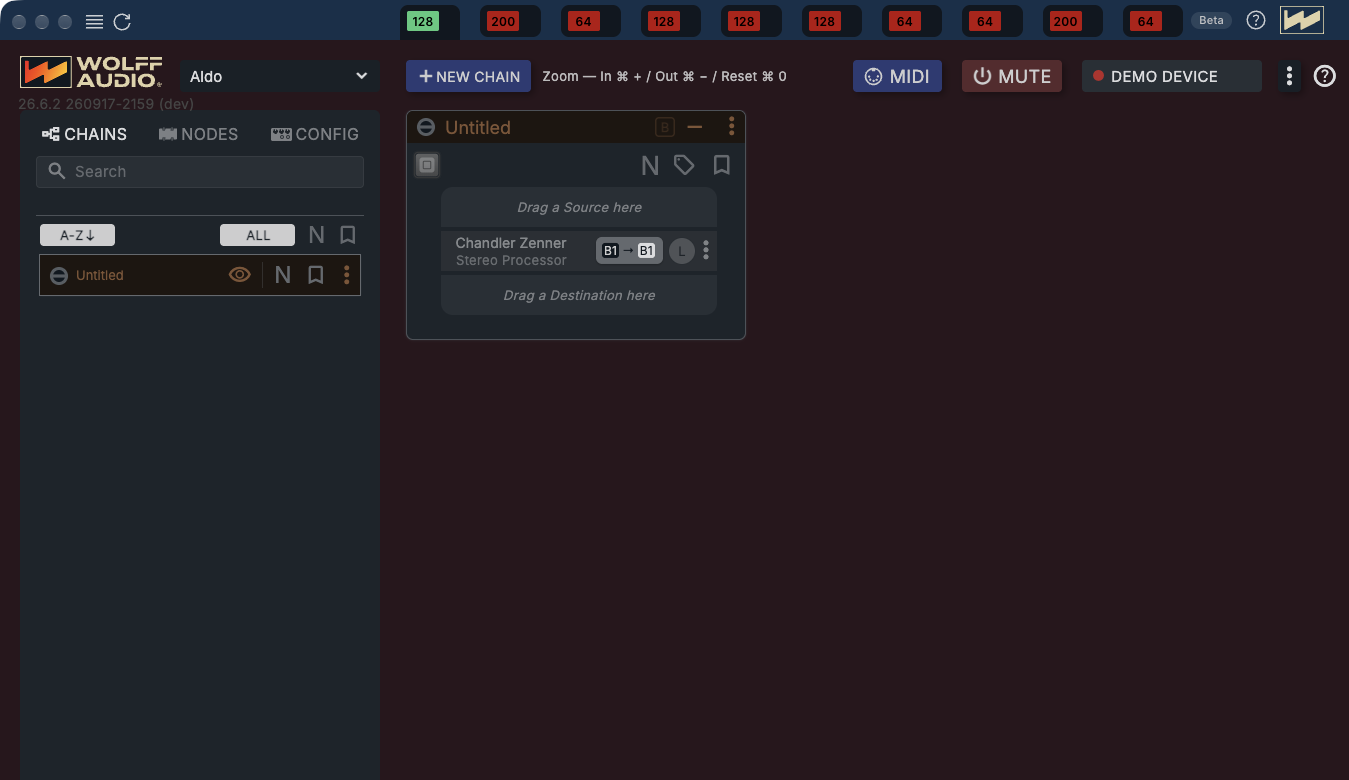
Wolffhound: the window and its tabs
| # | Control | What it does |
|---|---|---|
| 1 | ☰ menu and ↻ reload | ☰ opens Wolffhound's menu, including Preferences… for Wolffhound's own options. ↻ reloads the selected tab, like a browser's reload button. |
| 2 | Device tabs | One tab per Wolff Audio device Wolffhound finds on your network. On a ProPatch tab the badge shows the model (128, 64, 200); green means online. Switching tabs switches which hardware you control. |
| 3 | ? and W | ? opens help. The W returns to Wolffhound's home screen. Wolffhound's version is in its menus, not in this bar. |
ProPatch app: inside the tab
| # | Control | What it does |
|---|---|---|
| 4 | Everything below the tabs | Chains, Nodes, Devices, MIDI, MUTE ALL: all of it is the ProPatch app, running inside the selected tab. See App Reference. |
Open a ProPatch
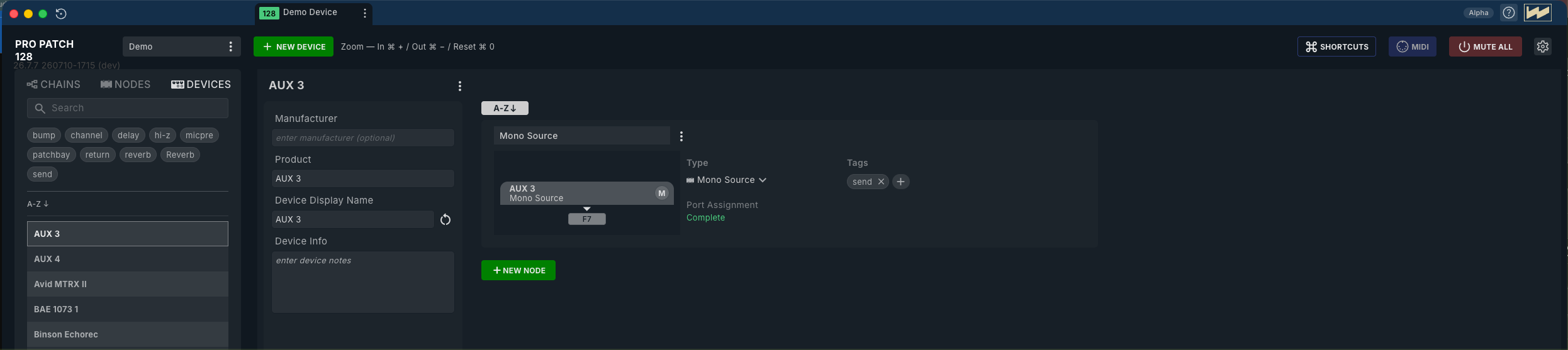
A ProPatch appears as a tab once it's powered on and connected to the same network as your computer. To get a new unit to that point, follow the Quick Start.
If no tab appears, check the Troubleshooting guide.
Practice on the Demo Device
The Demo Device tab is a practice ProPatch built into Wolffhound, with no hardware behind it. Nothing you do there affects your studio. To hide it, open Preferences… (Command+,) from Wolffhound's ☰ menu and switch off Demo Device.
Next: Quick Start.