MIDI Control
Use MIDI notes from a controller, DAW, or Stream Deck to switch routing without the mouse. The ProPatch app receives each note and sends the new route to the unit, so keep the unit's tab open in Wolffhound whenever you rely on MIDI.
Set up MIDI control
- Connect a MIDI source: a hardware interface, a DAW or controller port, or a virtual port (IAC Driver on macOS, loopMIDI on Windows). If Wolffhound asks for MIDI access, allow it.
- Press Shift+M to open System Configuration › MIDI. With no port selected, the header MIDI button shows a crossed-out icon and opens this tab too.
- In the MIDI PORT picker, select each port to listen to (✓). Any MIDI Port listens to every port and replaces individual selections. CLEAR deselects all.
- Close System Configuration and assign notes with MIDI Learn or MIDI assignments (below).
- Send each note once with monitors down and confirm the result.
Use Any MIDI Port only to check whether a port is reaching the app; for normal work, select specific ports so unrelated MIDI traffic can't change routing.
What MIDI can control
Chains, Nodes in a Chain (any role), AB Groups, MUTE ALL, and Sessions. Bypass Processors is not a target.
Assignments belong to a Node's use inside a Chain, not to the Device, so the same Processor can respond to different notes in different Chains.
Notes appear as CH 1 - 60/C4: MIDI channel, note number, and note name. The channel is part of the match, so note 60 on channel 1 and note 60 on channel 2 are different assignments.
Assign notes with MIDI Learn
- With the CHAINS or NODES browser open, click MIDI or press M. Assignable controls glow purple: Chain activate buttons, Node channel chips, MUTE ALL, and the Session selector.
- Click each target the note should control; click again to remove one. You don't need Shift.
- Send the note from your controller.
The ProPatch app assigns the note to every target in the set, shows a notice naming each target with assigned to and the note, and leaves Learn. Repeat for the next note. Press Esc or click MIDI to leave Learn without assigning.
One note can drive any number of Chains, Nodes, and AB Groups. MUTE ALL and Session notes are exclusive: assigning one of them removes that note from every other target.
MIDI assignments
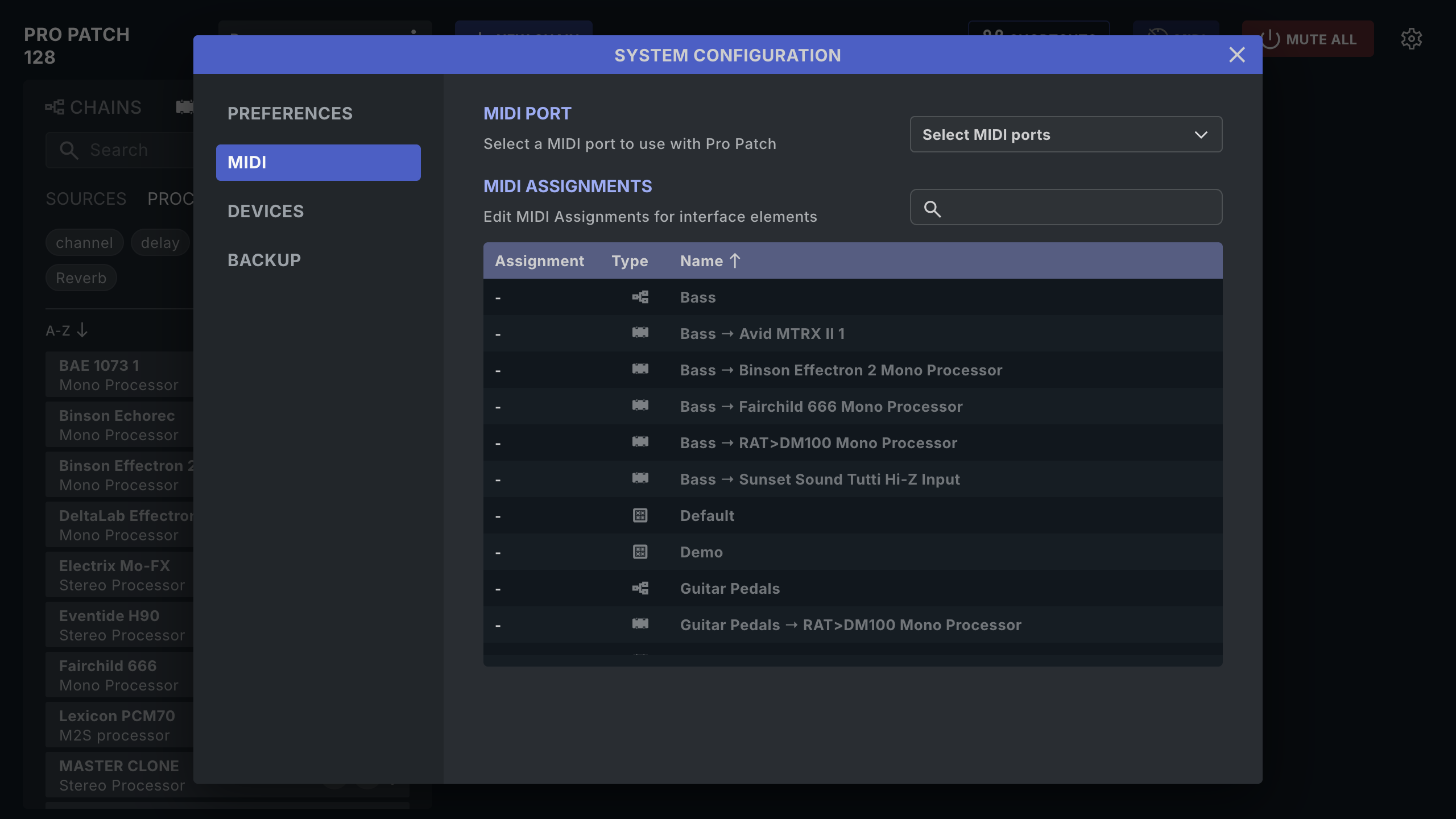
System Configuration › MIDI › MIDI ASSIGNMENTS lists every target: each Chain, each Node in each Chain (Chain → Device Node), AB Groups, MUTE, and every Session. Use Search to filter; click Assignment, Type, or Name to sort.
Each row's ⋮ menu has:
| Item | Result |
|---|---|
| Learn... | Assigns the next note received to this row. Esc cancels. |
| Assign | Channel (1–16) › octave › note, such as C4 (60). |
| Clear | Removes this row's note. |
| Clear All... | Removes every MIDI assignment in this Session after CLEAR ALL? › YES. |
The same MIDI submenu (channel › octave › note, then Clear and Clear All..) appears in the Chain, Node, and Session menus.
What each note does
| Message received | Chain or Node | AB Group | MUTE ALL | Session |
|---|---|---|---|---|
Note On, velocity 1–126 |
Toggle | Step to next member | Toggle | Load |
Note On, velocity 127 |
Force on | Step to next member | Mute | Load |
Note On velocity 0, or Note Off |
Force off | Turn group off | Unmute | — |
- While MUTE ALL is on, notes for other targets are ignored.
- A Note Off within about 0.4 seconds of its Note On is ignored, so a tap toggles once. A longer press sends a Note Off that turns the target back off.
- A notice reports each target as activated or deactivated; several targets share one MIDI TRIGGER notice.
- MIDI never opens the conflict dialog. If the new route needs a Port ID that another active Chain uses, the other Chain is switched off: the last note wins. See Port ID Conflicts.
- A Session note loads that Session immediately. Unsaved changes in the current Session are discarded without a prompt, so save first.
Continuous controller (CC) messages are ignored, so faders, knobs, and CC-only buttons can't be assigned.
Where assignments are stored
| Assignment | Stored with |
|---|---|
| Chain, Node, and AB Group notes | The Chains, so they travel with Session export and import and with backups |
| A Session's own note | The Session, so it travels with Session export |
| MUTE ALL note, MIDI port selection | This computer only; not in Session exports or backups |
On a new computer, select the port and reassign MUTE ALL. See Sessions, Files, and Backups.
Set up a Stream Deck button
- Create a virtual MIDI port (IAC Driver on macOS, loopMIDI on Windows) and select it in System Configuration › MIDI.
- In the Stream Deck MIDI action, output to that port and turn off any plugin-private port option.
- Choose a note and channel. Set velocity
1–126to toggle (many templates default to127, which only turns on). Send Note On only, if the plugin allows it. - Start MIDI Learn, click the target, and press the button.
MIDI troubleshooting
| Symptom | Fix |
|---|---|
| MIDI button shows a crossed-out icon | No port is selected. Select one in System Configuration › MIDI › MIDI PORT. |
| MIDI button is dimmed | Open the CHAINS or NODES browser. |
| Port missing from the picker | Restart the software that creates the port; check Wolffhound's MIDI access. |
| Nothing responds | Check the tab is open, the port is selected, the channel matches, and the controller sends notes, not CC. Try Any MIDI Port briefly. |
| Button only turns the target on | It sends velocity 127. Use 1–126. |
| Target turns off on release | Long press sends Note Off. Tap, or send Note On only. |
| Toggle out of step with controller lights | Toggle once in the ProPatch app, or use 127/0 for explicit on/off. |
| A Chain switches off when another note fires | They share a Port ID; the last note wins. Hold O to compare Port IDs. |
| Other notes stop working | MUTE ALL is on. |
Beyond MIDI: direct triggers
A direct trigger is a prepared network request, sent to the ProPatch's Control port instead of through MIDI, that sets a complete route state in one step. Use one when a large fixed layout, such as surround monitoring, is easier to recall as one state than as many Chains.
To get one, build and test the routing, export the Session, and send it to Wolff Audio support (Sessions, Files, and Backups). Support builds the trigger for your unit and wiring; don't write or copy triggers yourself.
- Test every trigger with monitors down and MUTE ALL within reach.
- Give each button a clear name, such as
Control Room 7.1. - Retest after any firmware, ProPatch app, network, or wiring change.
Next: Updates and Firmware.