How ProPatch Works
ProPatch replaces patch cords with relays. Describe your studio once in the ProPatch app, then build signal paths from named Devices instead of jack numbers.
The work always goes in the same order:
- Define your Devices: everything physically connected to the ProPatch.
- Give each Device its Nodes: its signal paths, and the Port IDs they're cabled to.
- Build Chains: signal paths made from Nodes.
- Save it all in a Session.
The ProPatch app has three areas. The header holds the Session selector, the + NEW CHAIN button, and MUTE ALL. The browser on the left lists your Chains, Nodes, and Devices. The workspace on the right is where you edit a Device or build Chains. Every control is listed in App Reference.
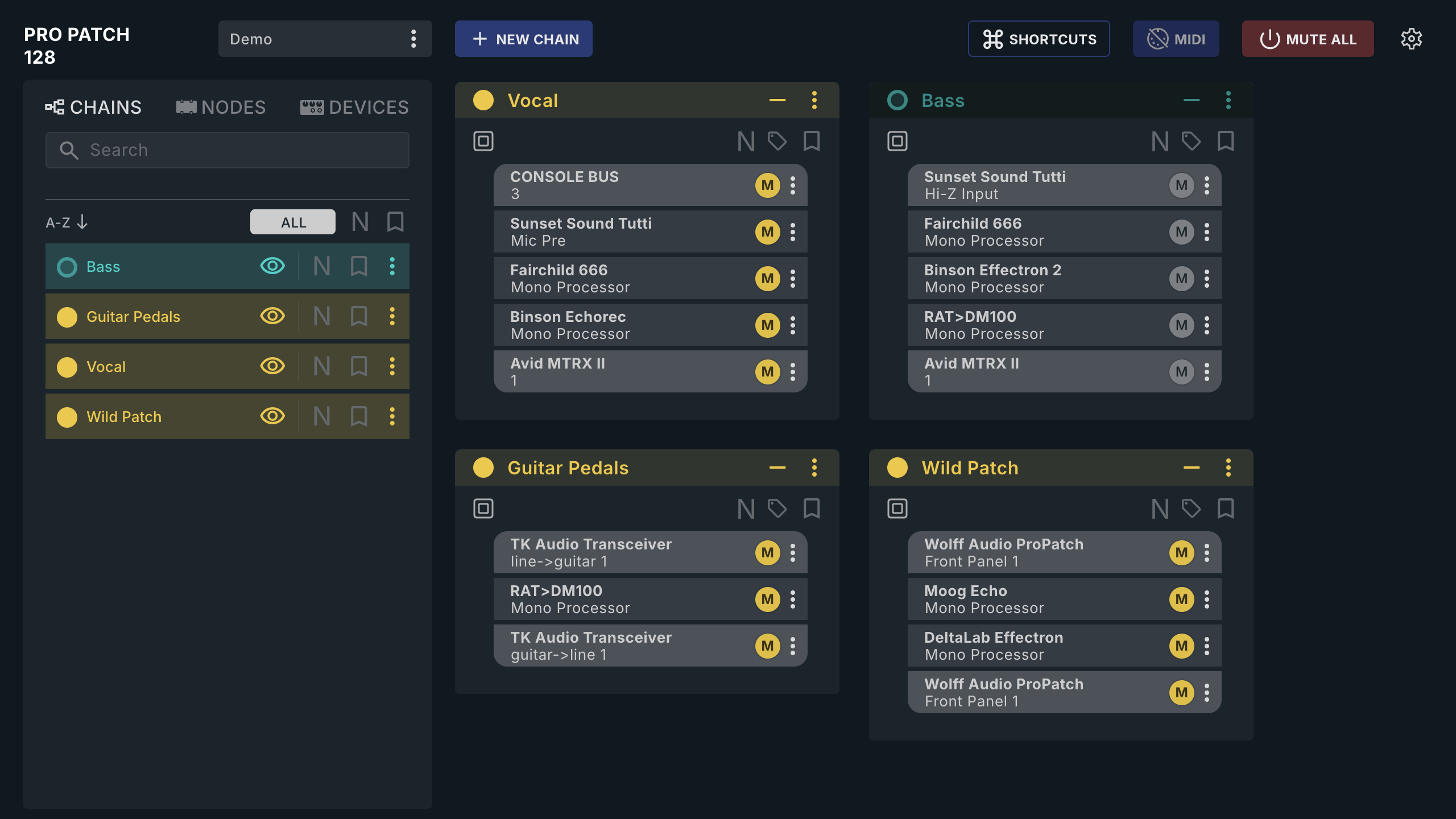
To follow along without hardware, open the Demo Device tab in Wolffhound and choose the Demo Session.
1. Define your Devices
A Device is anything physically connected to the ProPatch: a compressor, a mic preamp, a converter, a set of tie lines to the live room, a mic box, even another ProPatch. A 16-channel converter is one Device; so is a wall box with eight mic lines.
2. Give each Device its Nodes
A Node is one signal path through a Device, and it records which Port IDs that path is cabled to. Nodes are what you place in Chains. A Node's type says which way the signal goes:
- Source: the signal comes into the ProPatch, such as a converter output or a tie line from the live room.
- Processor: the signal goes out to the Device and comes back, such as a compressor.
- Destination: the signal leaves the ProPatch, such as a converter input.
The type also sets whether the Node is mono, stereo, or Mono to Stereo. A converter's outputs are Source Nodes and its inputs are Destination Nodes, all under one Device.
Device: BAE 1073 (two channels)
├─ Node "Ch 1"   Mono Processor   Out (to) C1 · In (from) C1
└─ Node "Ch 2"   Mono Processor   Out (to) C2 · In (from) C2

Device: Live Room Tie Lines
├─ Node "Mic 1"  Mono Source      In (from) A1
└─ Node "Mic 2"  Mono Source      In (from) A2
Each rear DB25 Port is a group of eight channels named by a letter, so a rear Port ID is the Port letter plus the channel number (e.g. A1, F8). Front-panel Port IDs start with FP (e.g. FP1, FP12).
When you move a cable, change the Node's Port ID; every Chain that uses the Node follows. A cable that doesn't match its stored Port ID is one of the most common setup failures.
You add Nodes in the Device editor:
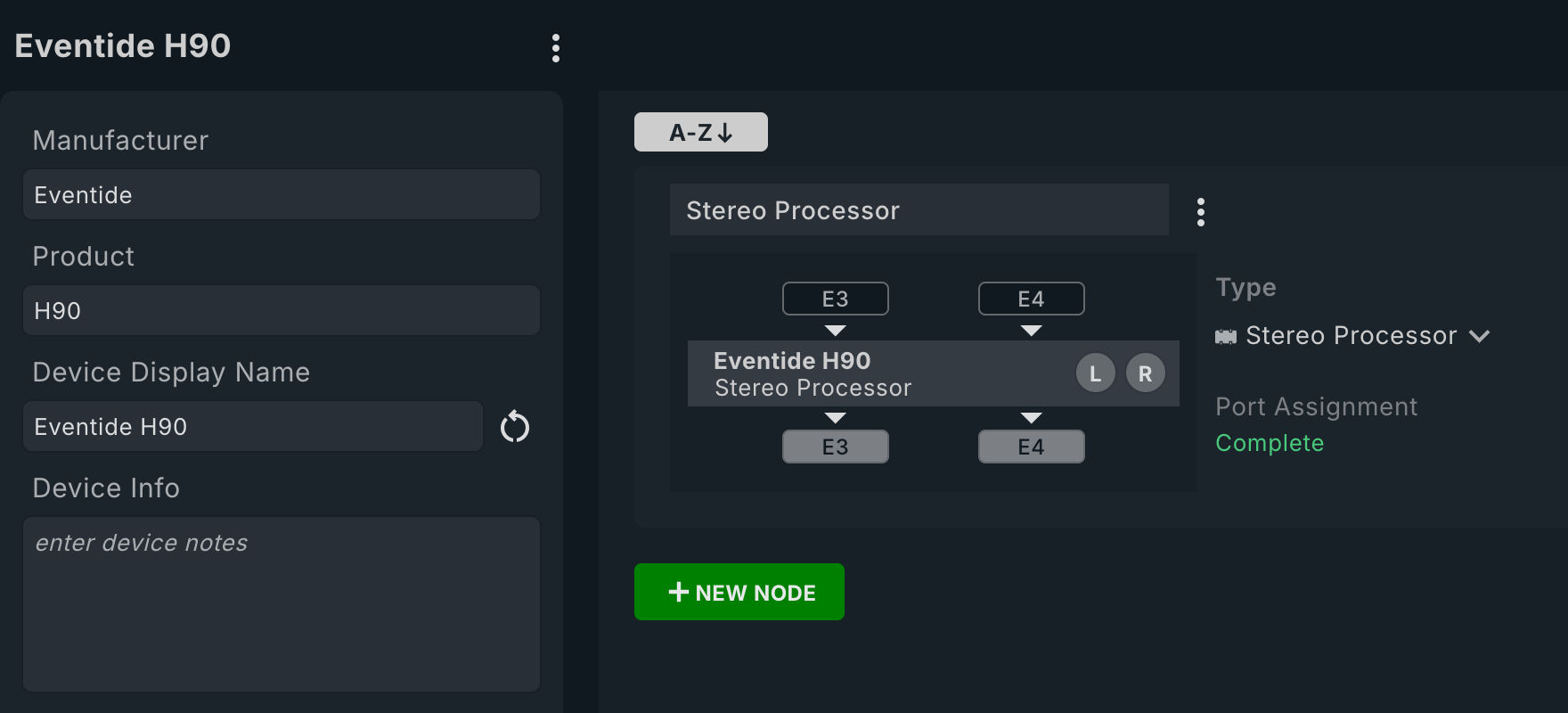
Every Node you create appears in the NODES browser, under the SOURCES, PROCESSORS, or DESTINATIONS tab for its role, ready to drop into a Chain:
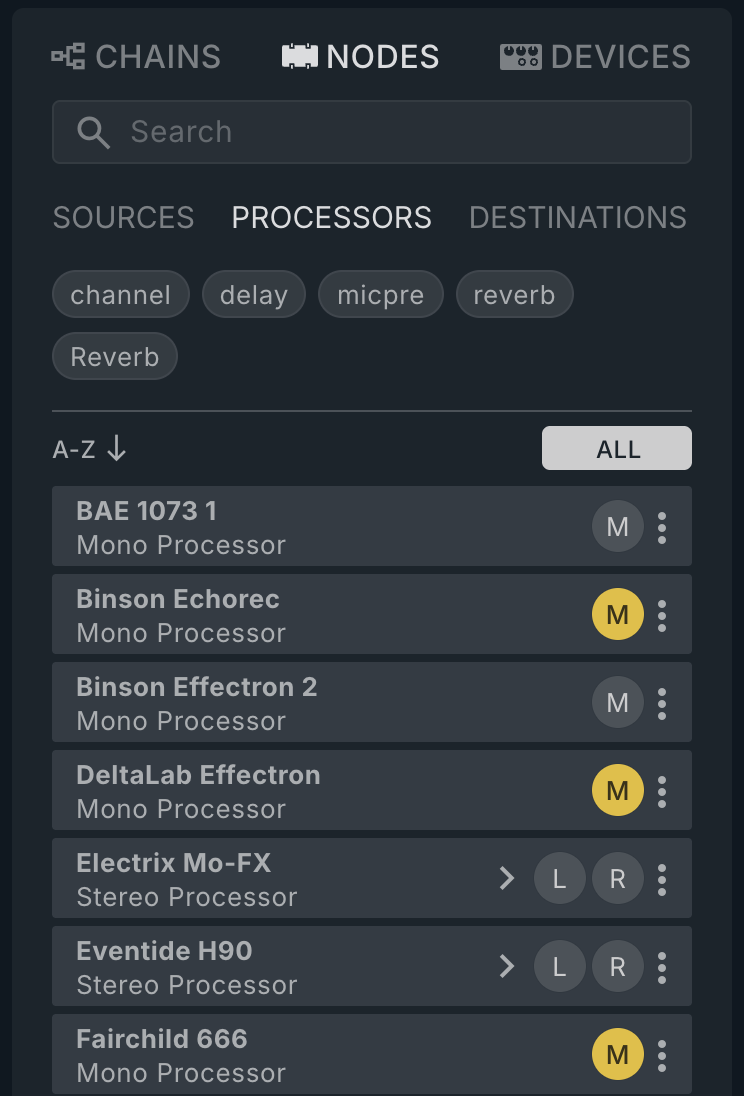
3. Build Chains
A Chain is one complete signal path:
Source → optional Processor(s) → Destination
A hardware insert might be:
converter D-A output → compressor → equalizer → converter A-D input
The Source feeds the first ProPatch input. Each Processor uses a ProPatch output to feed it and a ProPatch input for its return. The Destination takes the final ProPatch output.
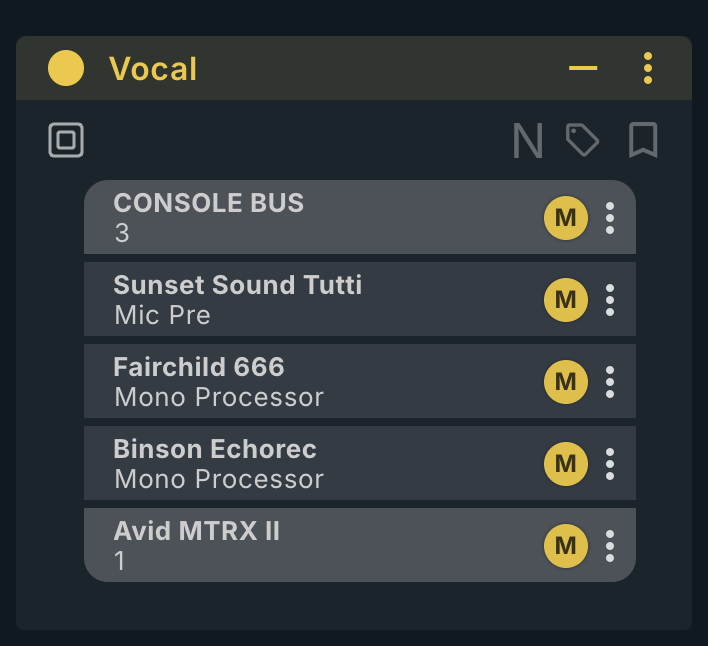
Each Chain is a card in the workspace. Two active Chains can't use the same Port ID at once (Port ID Conflicts).
4. Save a Session
A Session stores your Devices, Nodes, and Chains, with each Chain's on or off state, so you can move between projects without rebuilding routes. Switch and save Sessions from the Session selector at the top left. Saving, exporting, and backing up are different operations; see Sessions, Files, and Backups.
Next: set up the rest of your studio in Connecting Devices.