

Wolffhound Preferences
Wolffhound's own settings: updates, the Demo Device, support tools, and the data Wolffhound keeps on the computer. A unit's settings live in the ProPatch app instead, under System Configuration.
To open them, choose Preferences… from the Wolffhound menu or from the ☰ menu in Wolffhound's title bar, or press Command+,. The dialog is titled WOLFFHOUND CONFIGURATION and has four tabs down its left side. Click × or anywhere outside the dialog to close it.
The screenshots show the dialog with Advanced off, as it opens for most people. Advanced adds version numbers, release channels, and more; see Advanced.
WOLFFHOUND tab
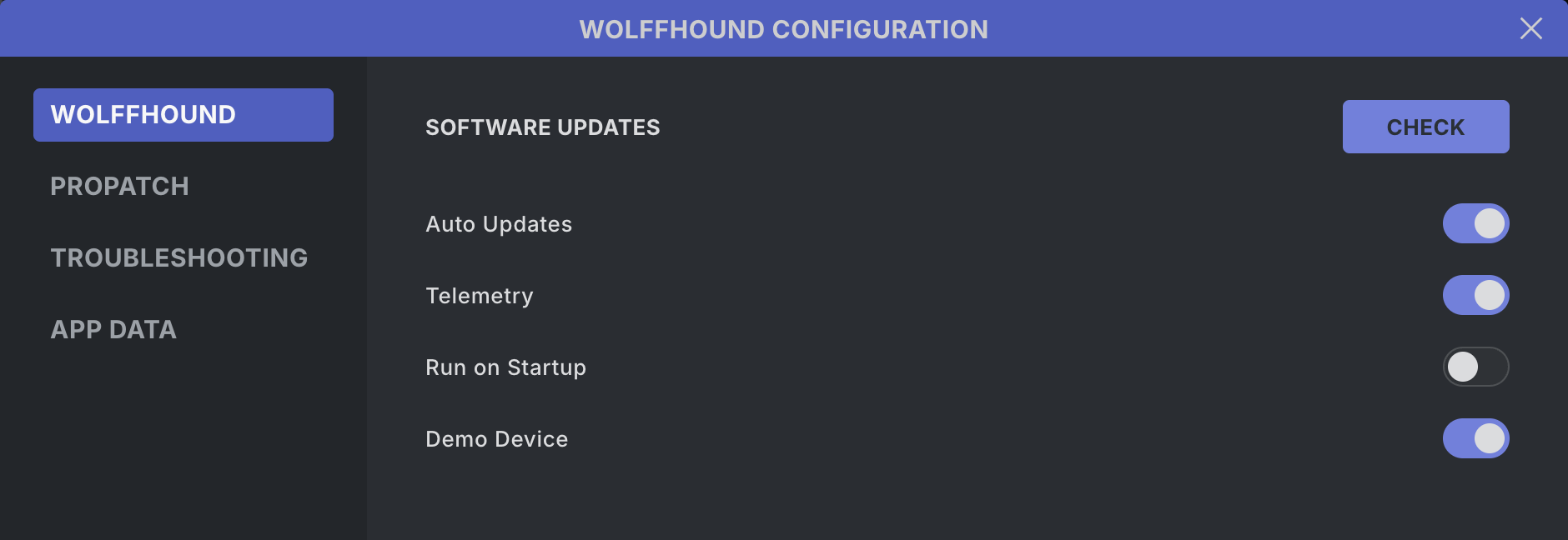
| Control | What it does | Default |
|---|---|---|
| SOFTWARE UPDATES › CHECK | Looks for a newer Wolffhound. When one exists, Wolffhound downloads it in the background and a banner in the title bar offers to install it. Otherwise a dialog reports Wolffhound is up to date. The Wolffhound menu's Check for Wolffhound Updates… does the same. | |
| Auto Updates | Checks for Wolffhound updates a minute after launch and every 10 minutes after that, and downloads them in the background. Nothing installs until the banner's install button is clicked. After switching it back on, quit and reopen Wolffhound to restart the automatic checks. | On |
| Telemetry | Sends usage and diagnostic information to Wolff Audio: Wolffhound's settings (including the registration name and email), the units it finds, and the computer's operating system. BUG REPORT sends its report either way. | On |
| Run on Startup | Opens Wolffhound when the computer starts. On macOS, Wolffhound appears in System Settings › General › Login Items & Extensions. If it's switched off there, a note under the switches says so. | Off |
| Demo Device | Shows or hides the Demo Device tab. See Practice on the Demo Device. | On |
PROPATCH tab
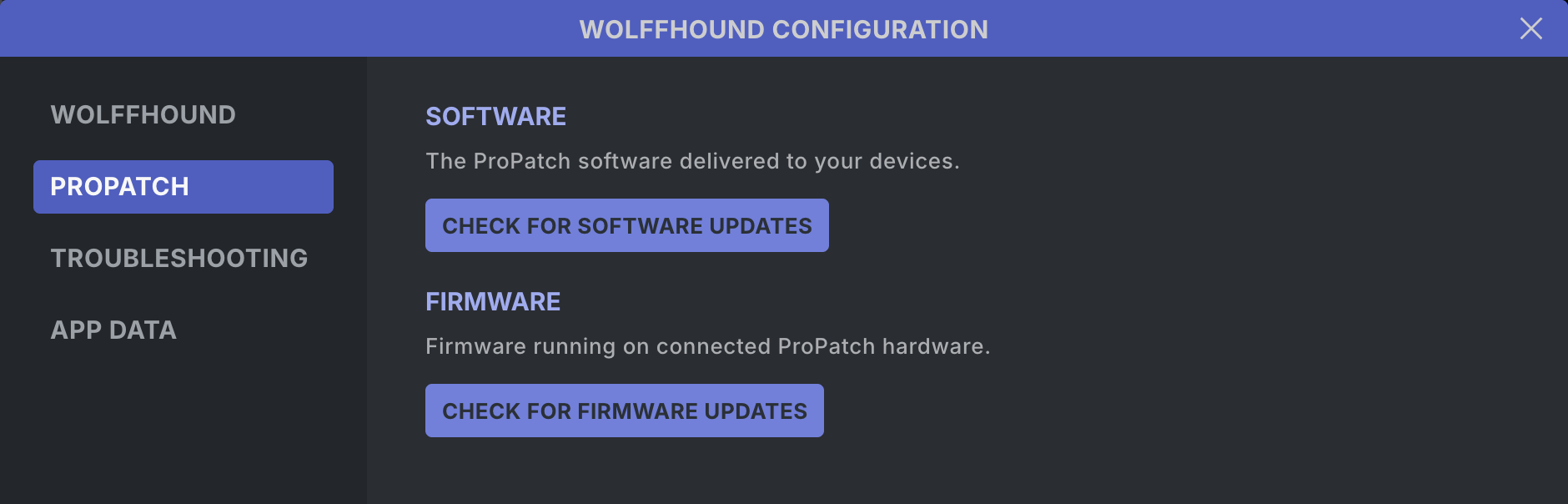
| Control | What it does |
|---|---|
| SOFTWARE › CHECK FOR SOFTWARE UPDATES | Looks for a newer ProPatch app. When one exists, a dialog asks Update the ProPatch software to the new version; Update loads it in every open ProPatch tab. Otherwise a dialog reports ProPatch software is up to date. and mentions any units that need firmware. |
| FIRMWARE › CHECK FOR FIRMWARE UPDATES | Compares the firmware on every connected unit with the latest release. It installs nothing. An out-of-date unit gets a Firmware update available banner in the title bar. The result also appears under the button, such as Connected ProPatch firmware is up to date. |
Save a full backup before installing any update. See Updates and Firmware.
TROUBLESHOOTING tab
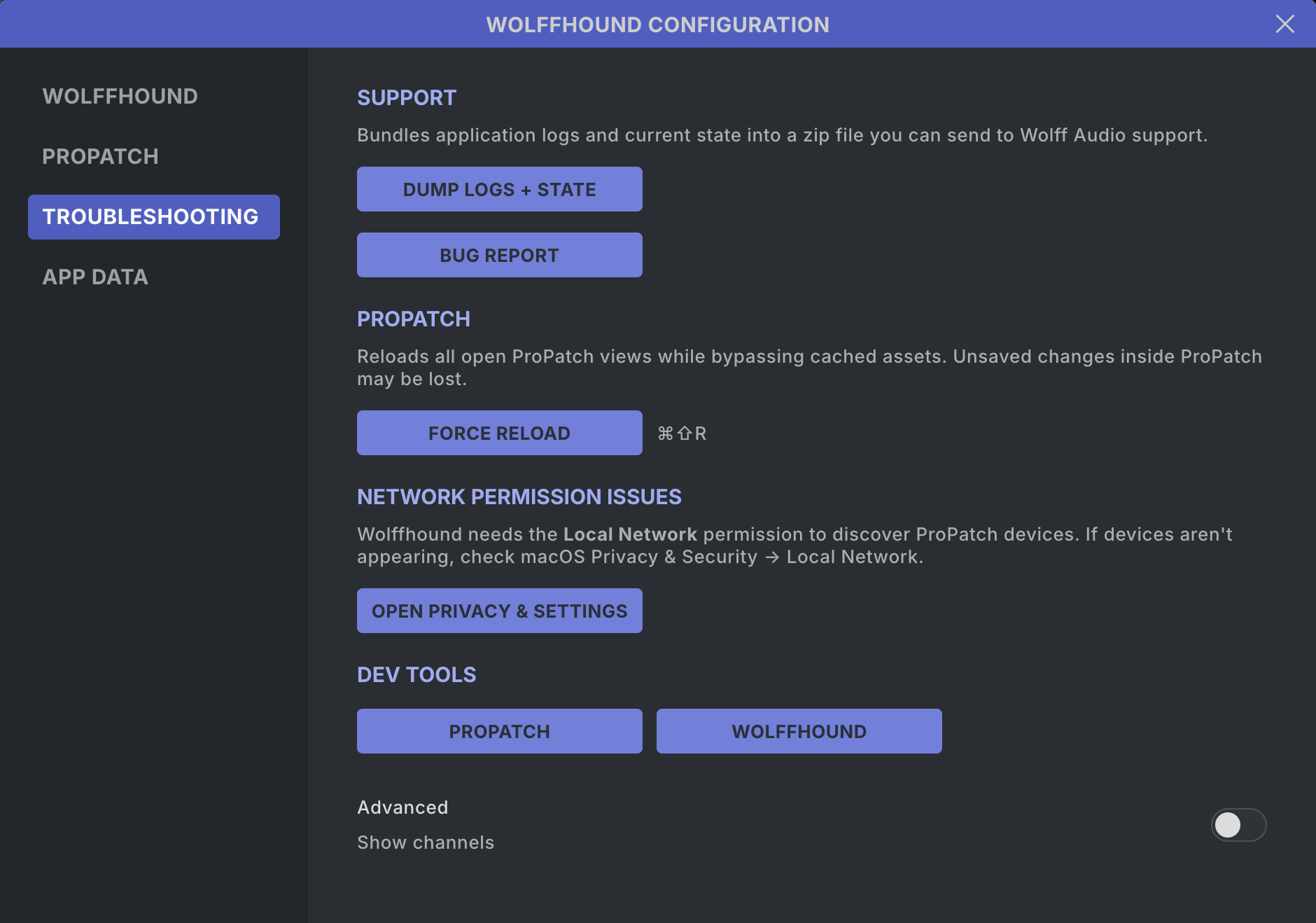
| Control | What it does |
|---|---|
| SUPPORT › DUMP LOGS + STATE | Saves Wolffhound's logs as a zip file, wh-bug-report- plus the date, in Documents unless another folder is chosen. Attach it when emailing Wolff Audio support. |
| SUPPORT › BUG REPORT | Opens a form: name, email, what went wrong, what was expected, steps to reproduce, and anything else. Every field is optional; system information and logs are added automatically. Submit sends it to Wolff Audio and shows a reference ID; Copy it and quote it when contacting support. If the report can't be sent, Wolffhound saves it as a file to email instead. |
| PROPATCH › FORCE RELOAD | Reloads every open ProPatch tab and fetches the ProPatch app fresh. Use it when a tab looks stale after an update or doesn't finish loading. Click it twice to confirm. Save the Session first: unsaved changes can be lost. Command+Shift+R does the same after a confirmation dialog. |
| NETWORK PERMISSION ISSUES › OPEN PRIVACY & SETTINGS | macOS only. Opens System Settings › Privacy & Security. Choose Local Network and allow Wolffhound. See ProPatch does not appear in Wolffhound. |
| DEV TOOLS › PROPATCH, WOLFFHOUND | Developer tools for diagnosing a problem. Use them only when Wolff Audio support asks. |
| Advanced | Shows the extra controls described in Advanced. Off by default. |
For everything else to include when asking for help, see Contact support.
APP DATA tab
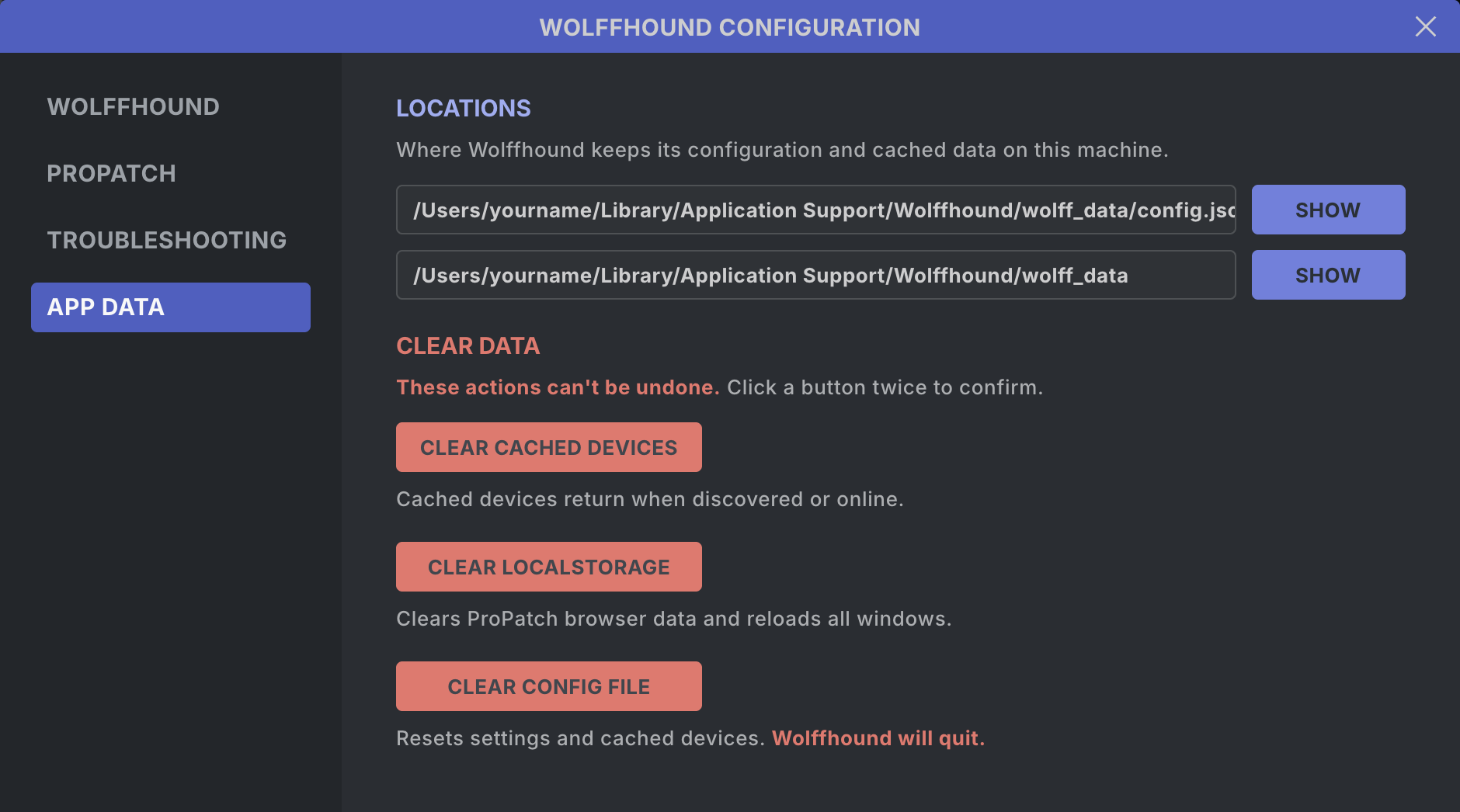
LOCATIONS shows where Wolffhound keeps its data. On macOS that's ~/Library/Application Support/Wolffhound/wolff_data. SHOW beside config.json opens the file in the computer's default app for it; SHOW beside the folder opens the folder.
The CLEAR DATA buttons can't be undone. Each one needs two clicks: the first changes its label to CLICK AGAIN TO CONFIRM, and a second click within four seconds carries it out.
| Button | What it clears |
|---|---|
| CLEAR CACHED DEVICES | The units Wolffhound remembers from earlier. They return when Wolffhound finds them on the network again. Hidden units are shown again too. |
| CLEAR LOCALSTORAGE | What each open ProPatch tab keeps in Wolffhound, including unsaved changes, then reloads those tabs. Tabs that aren't open are untouched. Use it only when Wolff Audio support asks, after saving the Session and a full backup (Back up and restore everything). |
| CLEAR CONFIG FILE | Every Wolffhound setting: the switches, release channels, registration details, remembered and hidden units, and window position. Wolffhound quits without asking; open it again to start fresh. |
Advanced
Turn on Advanced in the TROUBLESHOOTING tab to show version numbers, release channels, and device management. Wolffhound turns it on by itself at launch whenever Wolffhound, the ProPatch app, or the firmware is on a release channel other than Release, so that the channel stays visible.
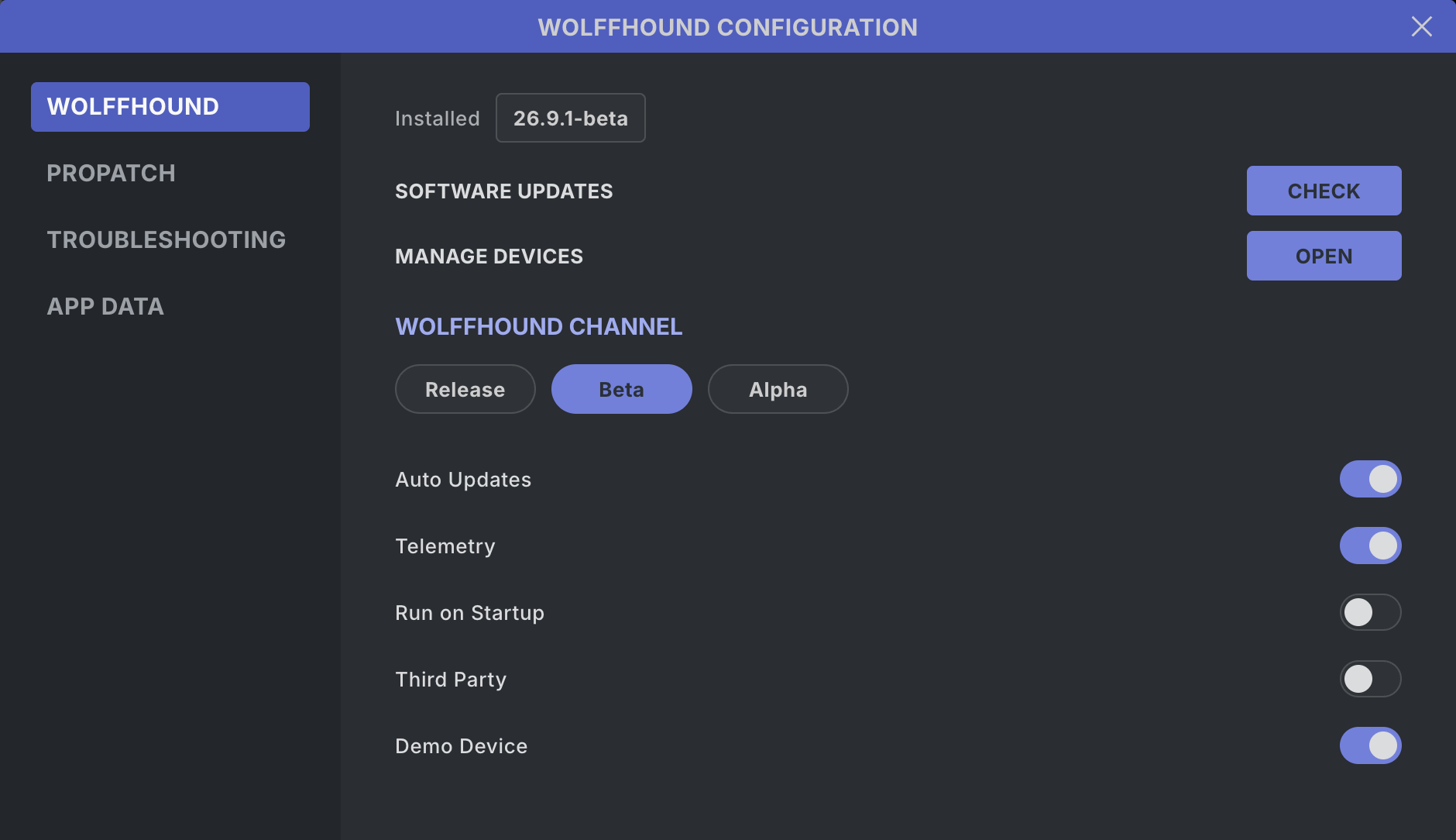
| Control | What it does |
|---|---|
| Installed | Wolffhound's version. |
| MANAGE DEVICES › OPEN | Lists every unit Wolffhound has found, online or not, each with a switch. Switching a unit off hides its tab and stops its MIDI control; Wolffhound still remembers it. Restore shows every hidden unit again. The Demo Device isn't listed; use the Demo Device switch. |
| WOLFFHOUND CHANNEL | The release channel Wolffhound's own updates come from: Release, Beta, or Alpha. Choosing one discards any downloaded update that hasn't been installed and checks the new channel at once. The Wolffhound menu shows the same choice under Wolffhound Release Channel. |
| Third Party | Leave off. |
On the PROPATCH tab, Advanced adds:
- Under SOFTWARE: the ProPatch app's Installed version, and SOFTWARE CHANNEL, the release channel the ProPatch app loads from (Release, Beta, or Playground). Choosing one reloads every open ProPatch tab from that channel. Save the Session and export any worth keeping before switching (Export a Session for a project). The extra addresses in the list, the + button, and Simulate Proxy Offline are for development; use them only when Wolff Audio asks.
- Under FIRMWARE: each connected unit's name and firmware version, or No connected ProPatch hardware., and FIRMWARE CHANNEL.
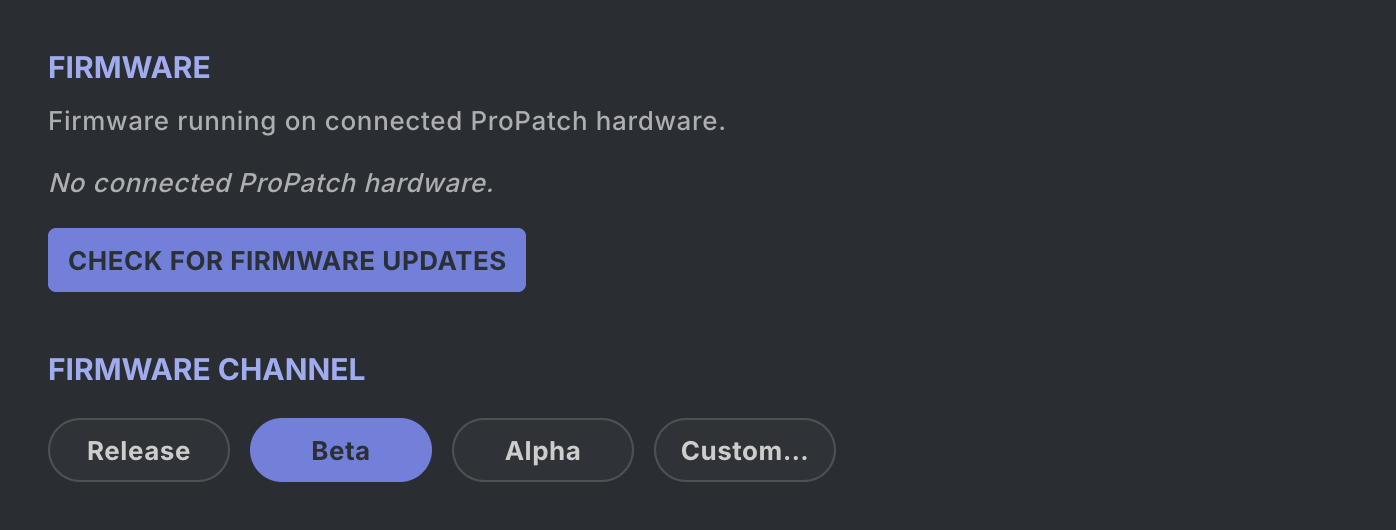
FIRMWARE CHANNEL sets the release channel that CHECK FOR FIRMWARE UPDATES compares against: Release, Beta, or Alpha. Changing it installs nothing. Custom… lists other firmware releases; choose one only when Wolff Audio support asks.
Next: Keyboard and Mouse Shortcuts.